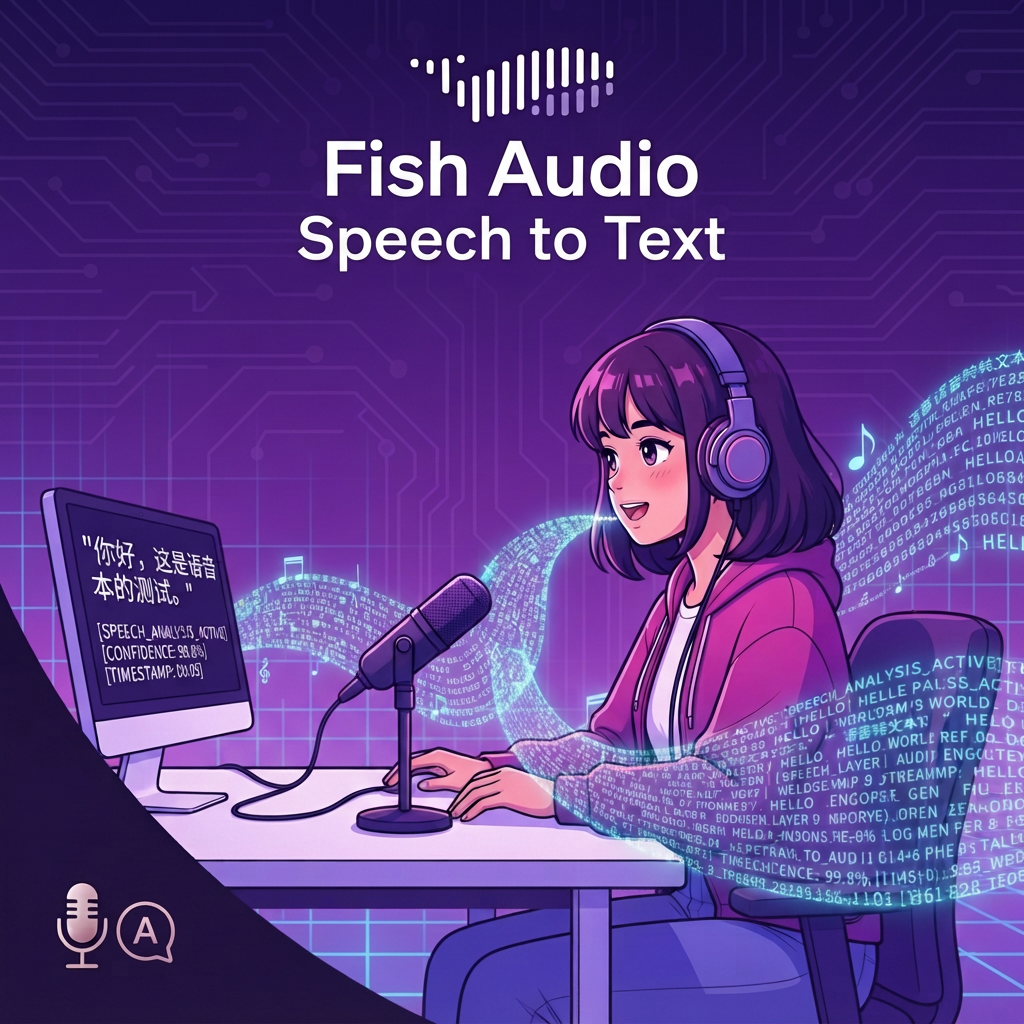
This ComfyUI tutorial workflow demonstrates end-to-end speech-to-text using the FishAudioSpeechToText node. Audio is loaded with LoadAudio (a sample file, fish_audio_example.mp3, is pre-connected so you can run it immediately), then sent to the Fish Audio ASR service for transcription. The node automatically detects the spoken language across 80+ languages and returns a clean transcript string along with an optional JSON payload of timestamped segments. The transcript is saved to disk via SaveText, while a MarkdownNote provides on-canvas tips.
Technically, LoadAudio decodes your file into an audio tensor and forwards it to FishAudioSpeechToText. When precise_timestamps is enabled on that node, it also returns segments_json containing per-segment text with start/end times (and, when available, finer word-level timing). SaveText writes the main transcript string to your ComfyUI output folder for easy reuse in subtitles, captions, or indexing pipelines. This setup is lightweight, API-driven, and practical for rapid transcription, subtitle prep, or generating text prompts from recorded audio.
API
Use this workflow from code
Every Comfy workflow is a JSON graph. The payload below is this workflow, exactly as ComfyUI runs it — fetch it from the URL, keep it in version control, or load it in ComfyUI and run it node by node.
Run it from TypeScript or Python with the Comfy SDK. The same code targets Comfy Cloud or a ComfyUI you host yourself — only the base URL changes.
// Install (beta)
npm i @comfyorg/sdk

// Run this workflow (TypeScript)
import { Comfy } from "@comfyorg/sdk";

const client = new Comfy({ apiKey: "comfyui-..." });
const wf = await client.workflows.fromFile("workflow_api.json");
const job = await client.run(wf);
await job.getOutputs("<output-node-id>")[0].toFile("output.png");
The SDK takes a workflow in API format: open this workflow in ComfyUI and use File → Export Workflow (API).
Comfy Cloud API access requires a plan with an API key.
FAQ